

The dashboard
In the dashboard you see the sync status and manage configuration, machines, projects, plugins and memories. You control everything from here: nothing is lost, and no choice is made for you.
The dashboard opens on its own on first launch; you can reopen it at any time from the status bar at the bottom or with the Claude Sync: Open Dashboard command.
Elements common to every tab
The top bar
- The sync status: Synced, Pending, Syncing…, Error, Unsent, or Check setup when the Claude folder is not the right one.
↑n ↓m: the changes to send and the changes to receive. The tooltip lists what is waiting to be sent.- ⟳ Refresh: reads the status again without syncing. The counter next to it shows when the view will refresh on its own (about every 30 seconds).
- The language selector, the active edition and Sync now, which starts a full sync right away.
- The button with your initials, which opens User settings.
If the Claude folder isn’t found, the Claude folder not found banner appears at the top of every tab (see The Claude Code folder).
The footer
At the bottom you find the privacy notes, GDPR compliant and NIS2-ready, the Privacy policy link, the product version and the Open on startup checkbox, which opens the dashboard when VS Code starts.
The tabs
The tabs come in this order: Overview · Claude system · Machines · Projects · Sessions · Plugins · Memory · Team · Audit · System · Help. Tabs your edition doesn’t include don’t appear. In the Team edition, Machines, Projects, Plugins and Memory become Team machines, Team projects, Team plugins and Team memory.
Overview
The big picture, with a row of cards:
- Sync status: the status and the time of the Last successful sync. If your credentials no longer work, the card shows Credentials expired with the Update credentials button.
- Machines: the active machines compared with the license limit (for example
3/10). - Repository: number of commits and size. In the Team edition there are two cards, Core repository and Memories repository.
- Local changes:
✓ cleanor● pending, with what is waiting to be sent. - Projects: the active projects with synced memories.
- Memory worker: present if claude-mem is installed, with the online or offline status.
Below, the Synced configuration strip counts Skills, Rules, Commands, Agents, Plugins, MCP servers
and Project memories (local). Skills can come from three sources, which the card keeps apart: for
example 3 +2 from plugins +8 from Claude Code. The first number is your own skills, the ones that
travel with syncing; the others come from installed plugins and from Claude Code itself. At the
bottom is the Sync activity — last 14 days chart.
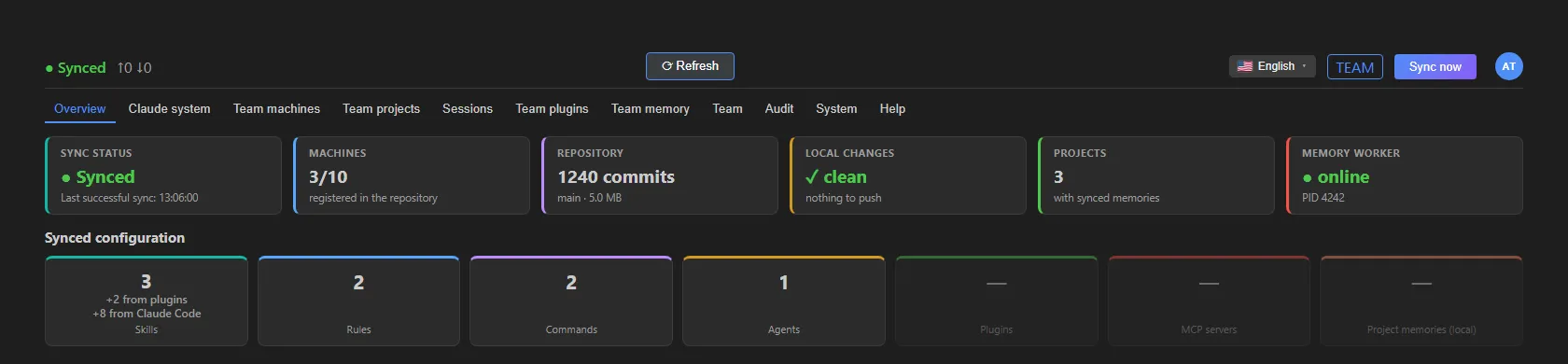 The Overview tab (Team edition example, sample data).
When a decision from you is needed
Whenever there are two versions of the same item and the choice is yours, the Overview shows it at the top, in the Waiting for your decision section. It’s the only place where you choose between two versions.
If you’re a team member and the team publishes a new version of an item you had changed, the team’s version is already in use on your computer. Your copy is kept in the Waiting for your decision section until you choose: compare it, use the team version, or keep yours.
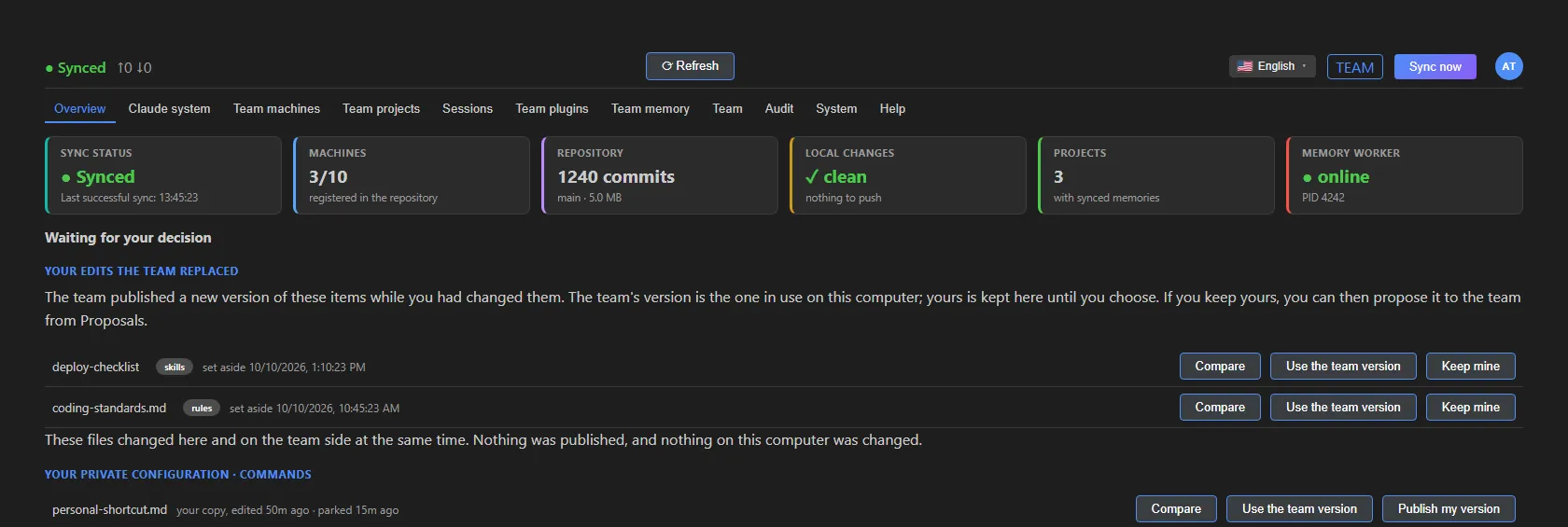 The Waiting for your decision section as a member sees it (sample data).
- Click Compare to see your version next to the team’s.
- Choose Use the team version or Keep mine, then click the same button again to confirm.
With Keep mine your version goes back in place and stays yours at the following syncs too; in the Team edition you can then propose it from the Team tab, Proposals panel. If the team has deleted the item in the meantime, Keep mine isn’t available: use Compare to copy what you need.
If you’re the maintainer, or for your personal items, a file that has changed both on this machine and in the shared version waits for you: until you choose, nothing is published and nothing changes on your computer.
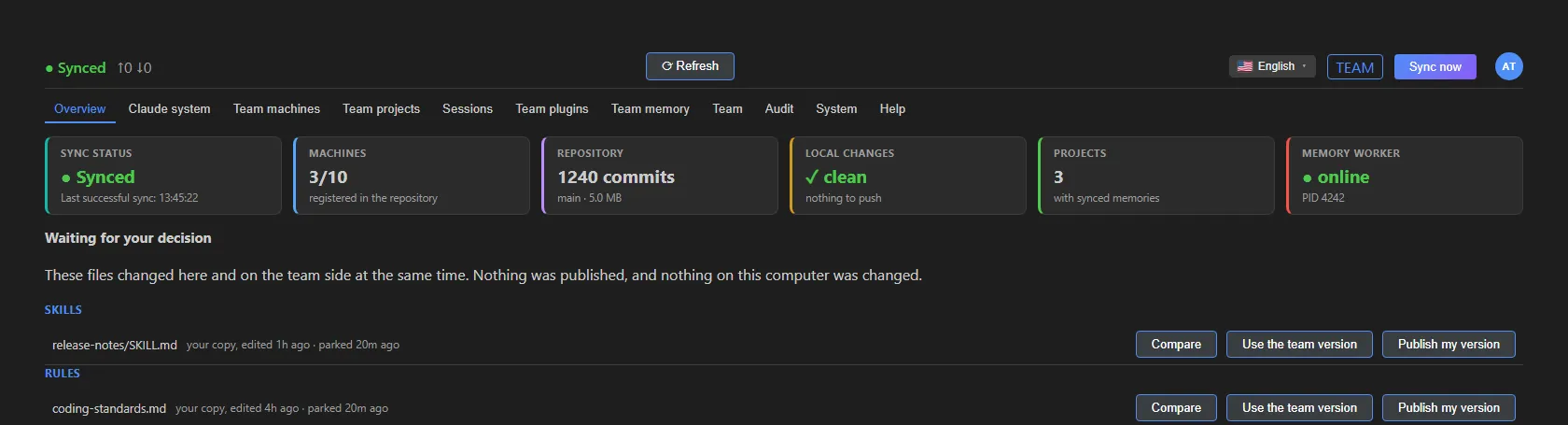 The same section as the maintainer sees it (sample data).
- Click Compare to see the two versions side by side.
- Choose Use the team version or Publish my version, then click the same button again to confirm.
In every case the row disappears as soon as you choose, and your choice applies from the next sync.
The Overview can also show other informational notices, for example about automatic repository maintenance.
Claude system
The Claude Code configuration on this machine.
- Configuration files: the CLAUDE.md and settings.json cards open those files. At the top right you see the path of the Claude folder, with Change to pick another one.
- Skills, Rules, Commands, Agents: one section per type, with the number of items and the Open folder button. Each row shows the date of the team’s latest published change, the Team, Only yours or Only here label and the Open button. The maintainer has the Active and Share switches and the Delete button; a member sees the same states as read-only and, on items the team doesn’t publish, Keep on all my machines. With more than 10 items, a filter appears.
- Team hooks and Custom plugins, if there are any, with the same controls. A hook that has no version for this operating system shows no runnable variant for this machine.
- At the bottom of each section, the maintainer finds the Deleted by the team list with the Revive button.
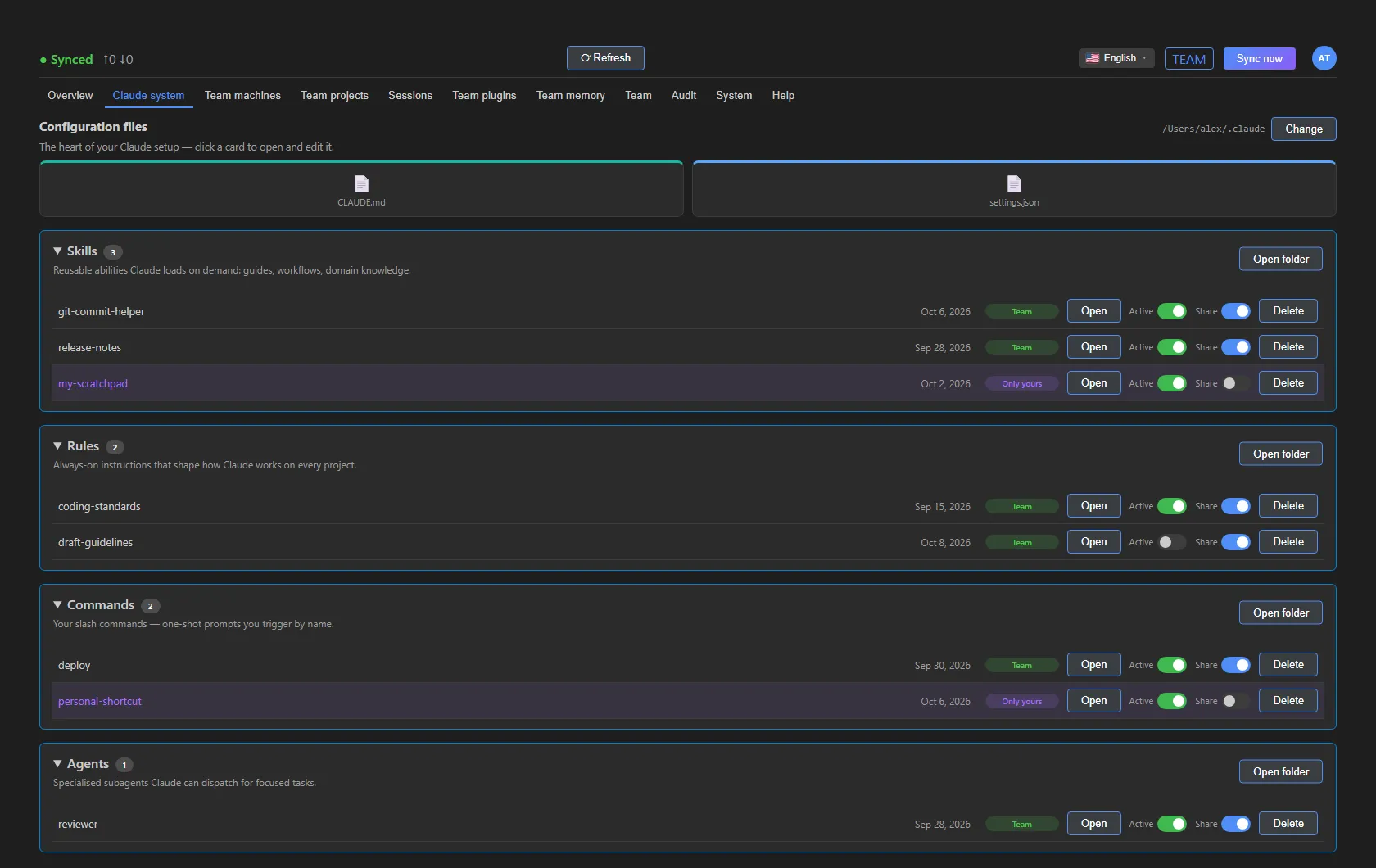 The Claude system tab as the maintainer sees it (Team edition example).
All the details are in Managing the configuration.
Machines
The registered machines: for each one, status, operating system, VS Code and Claude Sync version, user, Last sync and, if any, memories and projects.
- Deactivate, for the maintainer, frees the seat that machine was using. The deactivated machine is asked whether to remove the items that came from the team, keeping what the person created (see Leaving the team).
- A notice flags machines that have been idle for more than 30 days, whose seats you can free.
- A member sees the list with the details hidden (
N/A).
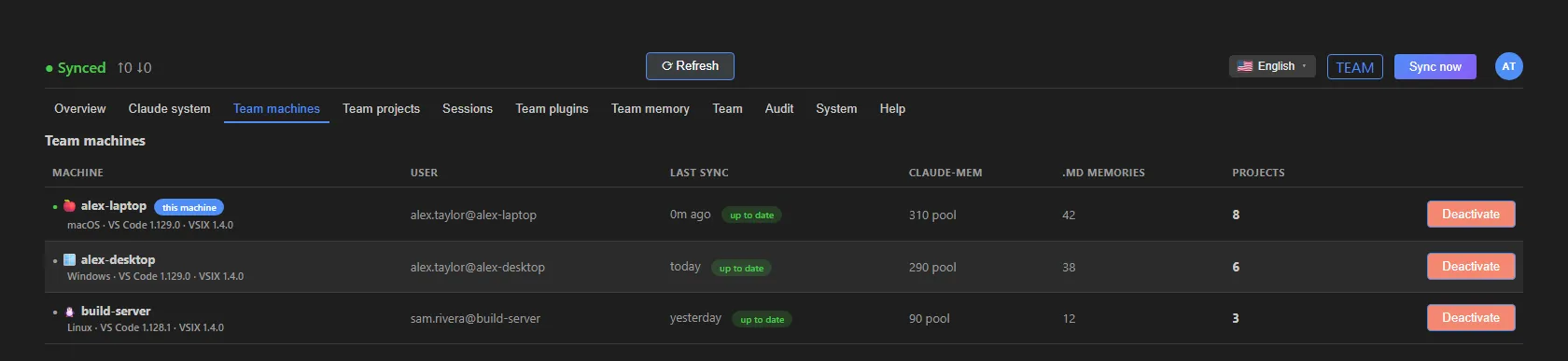 The Team machines tab (sample data).
Projects
The recognized projects and the folder they’re in on each machine. Available with the editions that include memories.
- Search by name… and Search by machine… filter the list.
- Each project is identified by its git remote (for example
owner/repo) and shows which machines it’s on, in which folder, and how many memory files it has. A switch per project decides whether its memories sync on this machine. - Merge projects, for the maintainer, combines the same project registered under different names into one.
- Projects outside the company scope appear dimmed, with the reason; you can include them with their switch. How the scope is decided is explained in What it syncs.
- Unmapped projects (no git remote) are listed separately: without a remote they can’t travel between machines.
- If a project folder doesn’t match any folder on this machine, a notice says so, pointing to Show logs in the System tab for the details.
Sessions
The Claude Code conversations you chose to take with you using /sync-session, grouped by machine
and by project. The tab appears only if your license includes session sync: see
Sessions across machines.
Plugins
The list of installed Claude Code plugins.
- For each plugin: name and version. The maintainer has the switch to enable or disable it, Hold updates and Remove (with two-click confirmation).
- Hold updates stops updates to that plugin on every machine until you click Resume updates: useful when a new version needs checking first. Machines stay on the version they have. Everyone sees the updates held label.
- A member sees the active or deactivated status.
- Custom plugins appear here as read-only, with their status (Installed, Pending or Setup failed); you manage them from the Claude system tab.
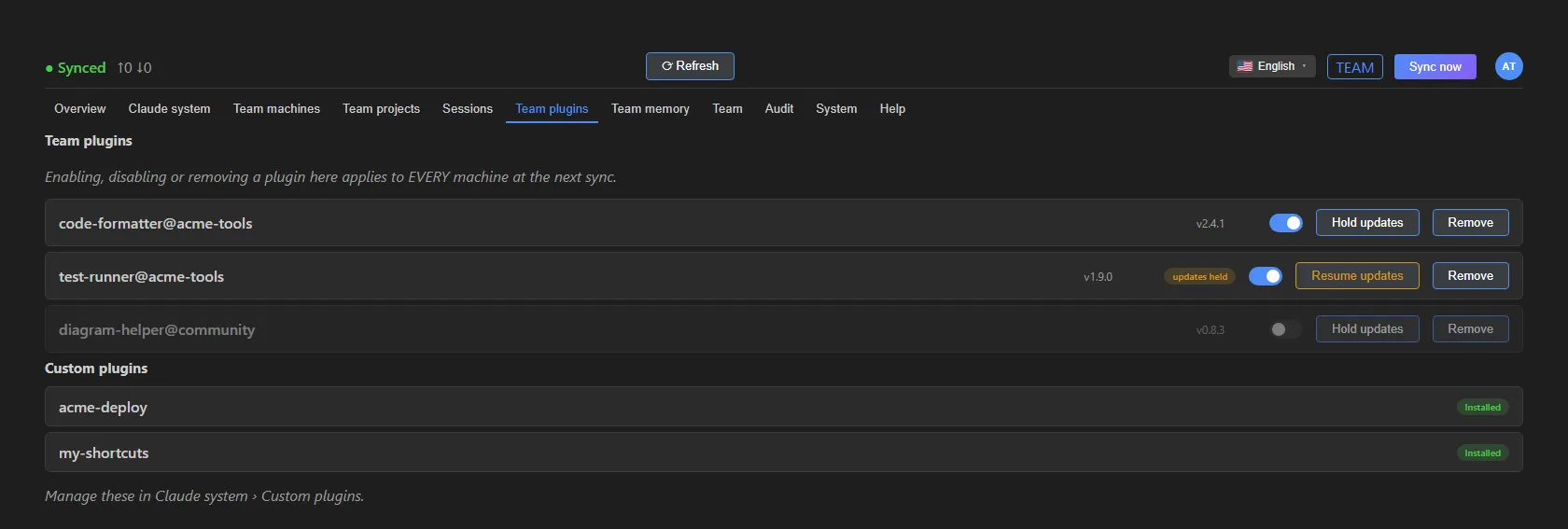 The Team plugins tab as the maintainer sees it (sample data).
Plugin updates are applied when no Claude Code sessions are open. If a session was already open, it carries on with the previous version until you restart it, and the app tells you so.
Memory
Project memories. Requires an edition that includes memories.
- If claude-mem is installed, you see Memory worker, Local observations, Not yet synced and Memories repository.
- If it isn’t installed, a card shows the command to install it, with the Copy button.
- Two switches choose what to sync: Sync claude-mem memories (database) and Sync .md project memories (~/.claude/projects).
Team Team
Visible only with the Team edition.
- Your identity: if this machine doesn’t have a name or an email yet, a card asks you for them.
- Proposals: here a member proposes a new item or one of their edits to the team, and the maintainer decides. See Proposals to the team.
- Members: the people on the team, their machines and their role.
- Generate invite code and Issued invites, for the maintainer.
- How roles work: a summary of the roles.
Details in Team edition.
Audit
The activity history, if your edition includes it. The table shows When, the Machine and the Action (for example Changes pushed, Changes applied from the repository, Session-start sync, Session-end sync). Export CSV saves the history to a file.
System
License, syncing, diagnostics and, for the maintainer, repository maintenance.
- Repository cards (maintainer only): the address and the Reset, Compact, Clean up and Change repo buttons. See Repository maintenance.
- Hooks: the Session hooks switch (syncs at the start and end of every Claude Code session, even with VS Code closed) and the Custom hooks sync switch.
- Custom plugins: the Custom plugins sync switch.
- Synchronization: the Automatic sync cadence (At startup / manual only, Every hour, Every N hours), if your edition lets you choose it. A member sees it as read-only.
- License: edition, Licensed to, Expires on, the machine’s role and the Active modules, with Re-check now, Change license and Remove license.
- System check: checks Git, Node.js, Claude Code, the repository, claude-mem, the Claude folder and disk space. From the Claude folder row you can pick another one with Choose folder… (see The Claude Code folder).
- Re-align projects & memories, if you use claude-mem: brings the memories of the same project together under a single entry.
- At the bottom: Show logs and the Terms (EULA) link.
In this tab a member sees the System check, the cadence as read-only, the license with Remove license, and Show logs.
Help
A quick manual inside the app, showing only the topics that apply to your edition and role, with the Open the full online manual link, Contact us and Send feedback.
Where to go next
- What it syncs: what travels between machines.
- Editions: what each edition unlocks.
- Troubleshooting: if a status doesn’t look right.