

User settings
The User settings panel gathers what concerns you and this machine: your git credentials, realigning to the team, and the interface language. It is available to every role, because credentials are personal: they stay on this machine and are not shared with the team.
To open it, click the round button with your initials, at the far right of the dashboard’s top bar.
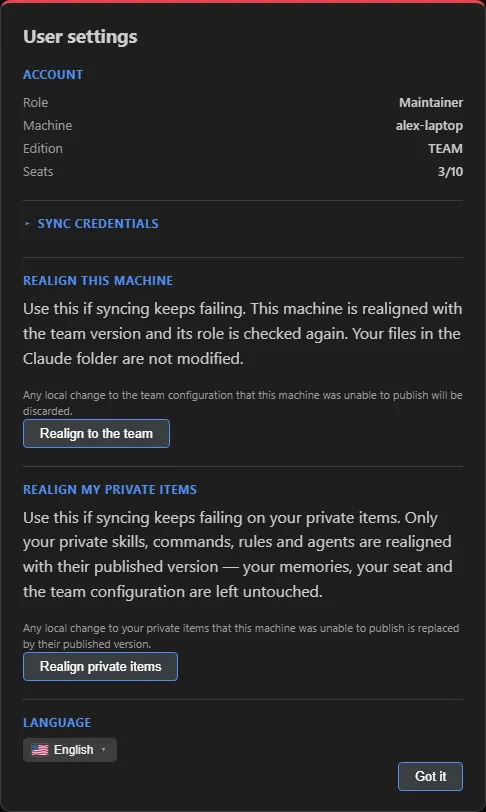 The User settings panel (sample data).
Account
Read-only information about this machine: Role, Machine, Edition and Seats (how many machines are active compared with the license limit).
How to update your git credentials
When you change your password or the token expires, syncing stops and the Overview shows Credentials expired with the Update credentials button, which opens this panel directly.
-
Open the Sync credentials section.
There is one block per repository. In the Team edition, if the two repositories are on the same server, there is a single block: “The same account is used for both repositories on this server.”
-
Fill in Git username and the new token in Access token (leave blank to keep the current one). If you only want to change the username, leave the token field empty.
-
Click Verify & save.
Claude Sync tries to reach the repository with the new credentials and saves them only if that works: “Credentials updated — syncing will resume.” If it doesn’t, the panel stays open with the message, so you can correct it and try again.
This action doesn’t change the repository address. To connect a different repository, the maintainer uses Change repo in the System tab.
How to realign the machine to the team
Use it when Sync now keeps reporting an error even after you’ve updated your credentials.
- In the Realign this machine section, read the notice and click Realign to the team.
- The button changes to Realign this machine to the team version?: click it again to confirm.
The machine goes back to the team version and its role is checked again. Your files in the Claude folder are not touched. The edits you had made to team items are kept before realigning: you’ll find them in the Overview, under Waiting for your decision (see The dashboard).
In the Team edition there is also the Realign my private items section, with the Realign private items button: it brings only your personal skills, commands, rules and agents back to the published version. Memories, seat and team configuration stay as they are.
Language
The same language selector you find in the dashboard’s top bar.
Where to go next
- The dashboard: all the tabs.
- Troubleshooting: other common problems.