

Proposals to the team
In the Team edition the maintainer looks after the shared configuration. Yet the people who use Claude every day are often the first to notice that a skill needs a tweak or that a useful command is missing. With Proposals you bring that work to the team: you offer an item, the maintainer reads it and decides. Until they decide, nothing changes for your teammates.
Everything happens in the Team tab of the dashboard, in the Proposals panel at the top of the page.
What you can propose
Skills, rules, commands, agents, team hooks and custom plugins on your machine. Each proposal carries a label:
- New: the team has nothing with that name, so the item would be added;
- Improvement: the team already has an item with that name and your version would replace it;
- runs: appears on hooks and plugins, which, once accepted, run on every machine on the team.
Next to the Propose to the team button, the app shows how many proposals you can still open. If you’ve used them all, withdraw one before submitting another.
How to propose an item to the team
-
Open the Team tab and click Propose to the team.
The Propose an item to the team window opens.
-
Choose the item from the list, grouped by type.
Below the list, the app tells you whether the item would be new for the team or would replace an existing one.
-
If you like, write a couple of lines for the maintainer in the Why it is worth having (optional) field.
-
Click Propose.
The proposal appears in the Waiting for the maintainer section. If you change your mind, click Withdraw.
If you propose the same item again, the new version replaces the previous one: the maintainer always sees the latest.
How to propose a change to a team item
You can also edit, on your own machine, an item the team publishes, for example a shared skill. Your version stays on your machine and appears in the Team items you changed on this machine section.
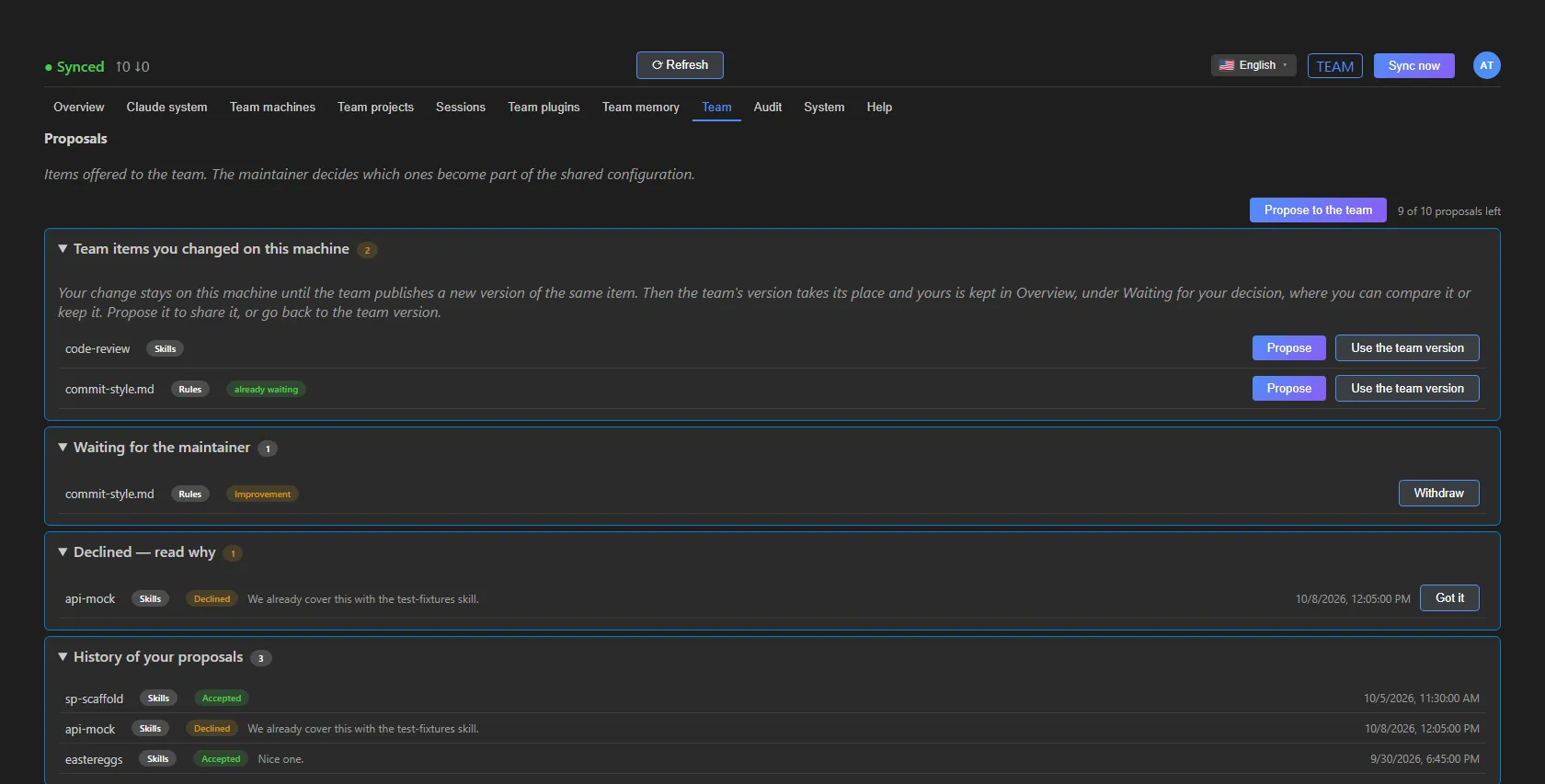 The Proposals panel as a member sees it (sample data).
For each edited item you have two buttons:
- Propose opens the proposal window with the item already selected;
- Use the team version brings the shared copy back to your machine (for skills, rules, commands and agents).
If you’ve already proposed it, the row shows the already waiting label.
What to do when the team updates an item you had edited
If the maintainer publishes a new version of an item you had edited, the team version goes into use on your computer, so everyone works with the same up-to-date copy. Your version doesn’t disappear: you find it in the Overview, in the Waiting for your decision section.
- Open the Overview and click Compare on the item’s row.
- Choose Use the team version or Keep mine, then click the button again to confirm.
- If you kept yours, the item shows up here again under Team items you changed on this machine: click Propose to offer it to the team.
The details, with the screenshot, are in The dashboard.
How to review and decide on a proposal (maintainer)
Your teammates’ proposals arrive in the Waiting for you section.
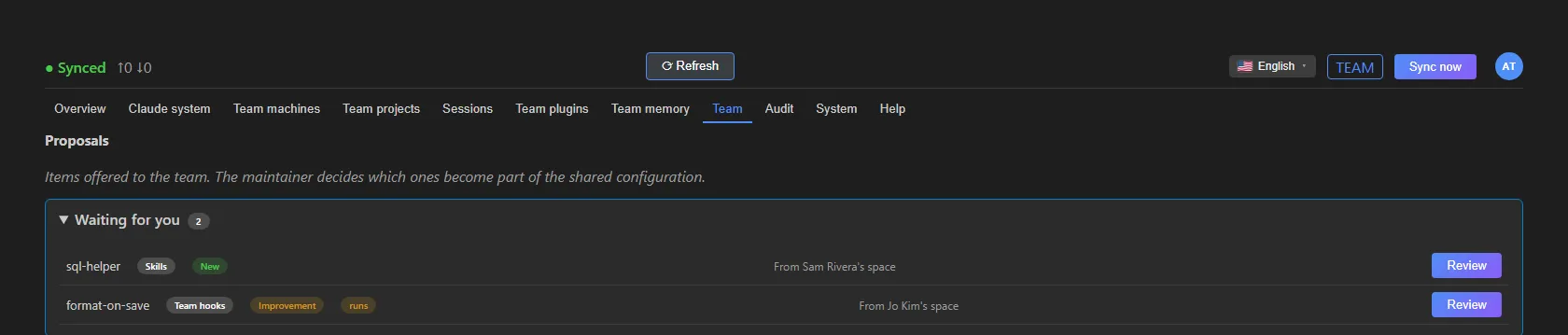 Two proposals waiting for a decision (sample data).
-
Click Review on the proposal.
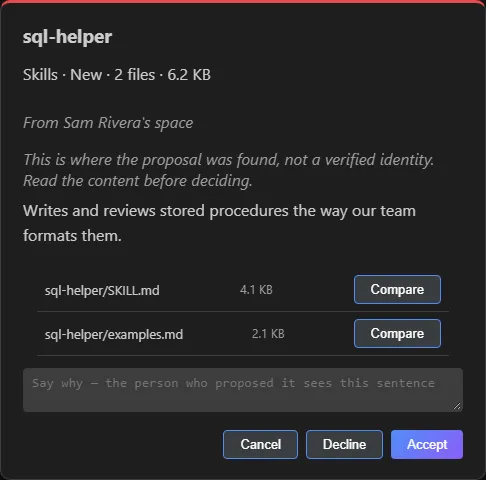
A window opens with the item type, the number of files, the proposer’s note and the full list of files that would be installed.
-
Click Compare on each file to read it next to the copy you already have.
-
Decide:
- Accept brings the item into the shared configuration: at the next sync it reaches the whole team;
- Decline requires a reason in the Say why — the person who proposed it sees this sentence field. It is the only explanation the proposer receives, so write it out in full.
The window also shows which space the proposal comes from. Read the files before accepting: you decide on the content. If the proposal changes while the window is open, the app doesn’t record the decision and asks you to open it again.
Where you see the outcome of your proposals
- An accepted proposal moves to the History of your proposals, and the item arrives with the next sync.
- A declined proposal stays at the top, in the Declined — read why section, with the maintainer’s sentence. Once you’ve read it, click Got it.
- The History of your proposals collects every decision with its outcome, reason and date.
See also
- Team edition: roles, repositories and invitations.
- Managing the configuration: sharing, keeping to yourself, turning off and deleting.
- The dashboard: all the tabs.