

Leaving the team or removing the license
Sooner or later a machine leaves the picture: you change computers, leave a team or want to stop syncing here. You can leave at any time and come back whenever you like. When you leave, Claude Sync can remove from the machine what came from the team, but only if you ask, and your own work stays where it is.
Removing the license from this machine
Any role can remove the license from their own machine, without asking a maintainer. Two ways:
- in the dashboard, System tab, the License card has the Remove license button;
- or the Claude Sync: Remove License command from the Command Palette.
Before going ahead, the extension always asks for confirmation in the app. The message reminds you of the most important point: removing the license stops syncing only on this machine: “This machine stops syncing until a license is activated again — your team and the other machines are not affected.”
What happens after removal
Once you confirm the removal:
- syncing stops, and automatic syncing around sessions is turned off;
- the status bar shows the padlock icon (“No valid license — click to activate”);
- the seat this machine was using is freed for the team. If the repository can’t be reached at that moment, the app tells you the seat will be freed at the next sync.
When the maintainer deactivates the machine
In the Team edition the maintainer can deactivate your machine from the Team machines tab. The machine notices at its next sync: it stops syncing and says goodbye with a message. From then on everything below applies, just as if you had removed the license yourself.
Removing the team items: a separate question
Leaving the team and cleaning up the machine are two separate choices. Removing the license doesn’t remove any team item from the machine. Right after, Claude Sync asks “Remove the team items from this machine?”, and you can say no: it never does this on its own.
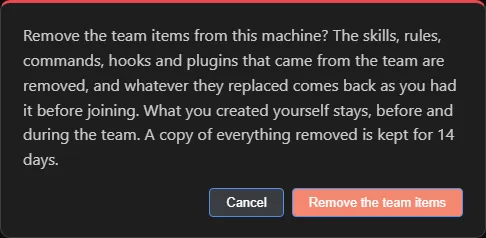 The question that appears right after you remove the license.
If you click Remove the team items:
- the skills, rules, commands, hooks and plugins that came from the team are removed from the machine;
- if a team item had taken the place of one of yours, yours comes back as it was before you joined the team;
- everything you created yourself stays, before and during your time in the team, including your private items;
- team hooks stop running and team plugins are uninstalled from Claude Code. Your own hooks keep working.
Two files follow their own rule. CLAUDE.md goes back to the version you had before the team only
if you haven’t edited it: if you wrote something in it, it stays as it is. In settings.json only
the settings that still have the value the team set go back, while the ones you changed stay.
Claude Sync keeps a copy of everything it removes for 14 days, so you can recover an item if you change your mind. The final message tells you where it is.
If you say no, everything stays as it is. You can revisit the decision when you remove Claude Sync from the machine, because the removal command asks the same question (see below).
On a maintainer’s machine
On a maintainer’s machine nothing is removed and the question doesn’t appear. What a maintainer has on their machine is also the work they published for the team, and it stays theirs.
What stays with the team
Your memories and the private items you already sent to the team’s repositories stay there. Leaving the team deletes nothing from the server.
A machine that is never opened again
The cleanup happens on the machine itself, the next time Claude Sync runs there. A machine nobody opens again can’t be cleaned up remotely: the maintainer can free its seat, but the team items stay on that computer until Claude Sync runs on it again.
Removing Claude Sync from the machine
The Claude Sync: Remove Local Data (Uninstall) command takes Claude Sync off the machine (see Uninstalling). If the machine has items that came from the team, it gives you two choices:
- Remove it and the team items: the team items are removed as described above and whatever they
replaced comes back. The copy of what is removed stays in your Claude folder, in a folder named
claude-sync-backup: delete it yourself when you no longer need it. - Remove it, keep the team items: the team items stay on the machine, but from then on Claude Sync can no longer tell them apart from yours.
Rejoining the team
Coming back is immediate: enter a valid license again and pick up exactly where you left off. Repository, credentials and settings stay after the removal: there is no first-launch procedure to go through again.
The only possible obstacle is a machine limit that is already full: if the team has reached its maximum number of machines, activation reports “No seats available — your team has reached its limit of N machines. Ask your maintainer to free one from the Machines list.” Once the maintainer frees a seat from the Team machines tab, you can try again.
See also
- Editions: seats per machine and team roles.
- FAQ: quick answers about machines, seats and syncing.
- Troubleshooting: what to do when the seat limit is full.