

Troubleshooting
For each situation you’ll find what you see, why it happens and what to do.
Credentials expired
What you see: the Sync status card in the Overview shows Credentials expired and syncing has stopped.
Why: the personal access token has expired, has been revoked or no longer has the permissions it needs, or you changed your password.
What to do:
- On your git server (GitHub, GitLab, Gitea, Azure DevOps…) create a new token with read and write permissions on the repository.
- Click Update credentials on the card, or open User settings with the button showing your initials.
- In the Sync credentials section, enter the new token and click Verify & save. Syncing resumes.
If instead you need to change the repository address, the maintainer uses Change repo in the System tab. See User settings.
The status stays on “Unsent”
What you see: the dashboard’s top bar shows Unsent with ↑N even after several syncs.
Why: there are local changes that haven’t reached the repository yet.
What to do:
- Click Sync now: Claude Sync first downloads what’s new and then sends your changes.
- If the status doesn’t change, check your network and the Sync status card in the Overview: if it shows an error, the tooltip on the card gives the reason.
- If that’s not enough, open Show logs in the System tab and attach the log when you write to assistenza@konima.it.
”Waiting for your decision” in the Overview
What you see: the Waiting for your decision section appears at the top of the Overview, with one or more files.
Why: there are two versions of those items, and Claude Sync leaves the choice to you. If you’re a member, the team has published a new version of an item you had edited: the team’s version is already in use and yours is kept in the row. In the other cases nothing is published or changed until you choose.
What to do:
- Click Compare to see the two versions side by side.
- Choose Use the team version, or Keep mine or Publish my version, then click the same button again to confirm. The row disappears right away.
See The dashboard.
Syncing stops with an error
What you see: syncing stops with an error at every attempt, even after Sync now and after updating your credentials.
Why: this machine’s local copy no longer matches the team’s.
What to do:
- Click the button with your initials, at the top right of the dashboard, to open User settings.
- In the Realign this machine section, click Realign to the team, then click the button again to confirm.
- The machine goes back to the team version. The edits you had made to team items are in the Overview, under Waiting for your decision.
If the problem only concerns your personal skills, commands, rules or agents, use Realign private items instead. Alternatively, the Command Palette offers Claude Sync: Reinitialize (wipe local clones and re-sync), which downloads the local copy again without touching your configuration.
Memories don’t sync
What you see: project memories don’t appear on a machine, or the local ones don’t go out.
Why: usually one of these reasons: the memory switches are off, claude-mem isn’t installed, Node.js is missing or too old, or your edition doesn’t include memories (available in Pro and Team).
What to do:
- Open the Memory tab and check that Sync claude-mem memories (database) and Sync .md project memories (~/.claude/projects) are on.
- If the tab says claude-mem isn’t installed, copy the command with Copy, run it in the terminal and restart Claude Code.
- In the System tab, run the System check: it flags whether Node.js is missing or older than 23.4.
- Click Sync now.
If the Memory tab isn’t there, your edition doesn’t include memories.
The same project is in different folders on two machines
You don’t need to do anything. The project is recognized by its git remote, and its memories end up in the right folder on each machine. In the Projects tab you can see, for each project, which folder it’s in on each machine.
If the same project appears twice under different names, the maintainer combines it with Merge projects in the Projects tab. If you use claude-mem and its memories appear under two entries, the System tab also has Re-align projects & memories.
 Re-align projects & memories, in the System tab.
”Check setup” / Claude folder not found
What you see: the status bar shows a yellow triangle; the dashboard shows the Claude folder not found banner and the Check setup status; nothing syncs.
Why: the Claude folder that was set or found is missing, empty, or not the one Claude Code uses.
What to do:
- In the System tab, run the System check and read the Claude folder row: it tells you whether the folder is missing, in the wrong place or empty.
- Click Choose folder… on that row and select your Claude Code folder. If you pick the wrong folder, Claude Sync refuses it without changing anything.
- Alternatively, set the
CLAUDE_CONFIG_DIRenvironment variable, which Claude Sync detects on its own, or the VS Code settingclaudeSync.claudeHome, which applies to this machine only.
The status bar doesn’t show the colored dot
What you see: the Claude Sync item in the status bar has no colored dot, and the tooltip says Sync managed by another VS Code window.
Why: with several VS Code windows open on the same machine, only one drives syncing; the others follow it. This is normal.
What to do: use the window that drives syncing, or close the others: syncing moves on its own to the window that stays open. For a complete picture, run the System check in the System tab.
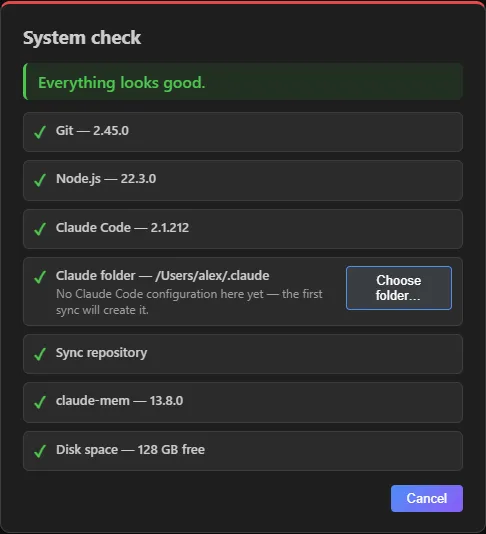 The System check verifies your environment and flags what needs fixing (sample values).
No seats available
What you see: when activating Claude Sync on a new machine, you get “No seats available — your team has reached its limit of N machines. Ask your maintainer to free one from the Machines list.”
Why: the active machines have reached the license limit.
What to do:
- On a machine that is already active, open the Machines tab.
- Find the machines that are no longer needed (the tab flags those idle for more than 30 days).
- Click Deactivate on the machine you want to free (in the Team edition this needs the Maintainer role).
- Go back to the new machine and activate again.
If you need more seats, consider a license with a higher limit.
MCP credentials missing on a new machine
What you see: after the first sync on a new machine, the MCP servers are there but don’t connect; Claude Code reports missing credentials.
Why: MCP server credentials don’t travel, for security. Only the server definition arrives.
What to do: enter the MCP server credentials again on this machine, as you would in Claude Code. Later syncs leave them where they are, so you only do this once.
A button stays busy
What you see: a dashboard button stays in a waiting state and looks stuck.
Why: every button stays busy until its operation responds.
What to do: wait for it to finish, without clicking again: launching the same action again doesn’t make it faster.